

When you select save a draft, the listing will be saved to your account to edit later.
To edit a draft listing, select My Account

Sign-In if you aren’t already.
Select My listings

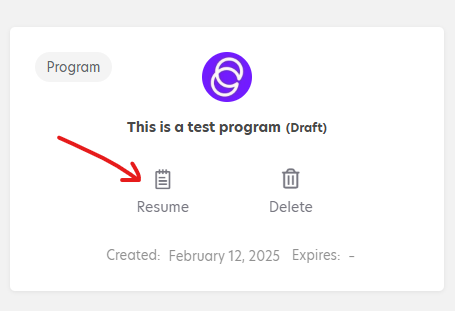
Your Listings page should show up. The draft listing will be saved and look like below. Select “resume” to continue editing the listing.
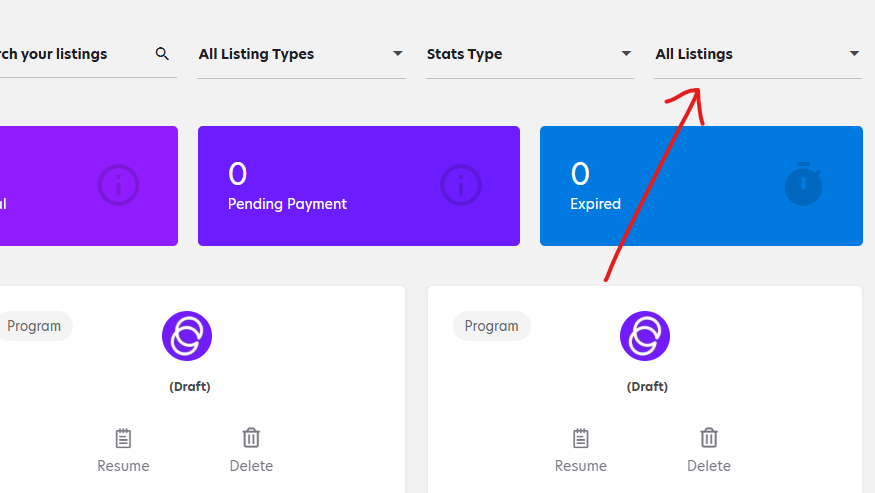
Note: If you don’t see your draft listing, follow the instructions below.
Make sure that this dropdown box says “All listings”. If it says anything else, change it to “All listings” or “Draft” and your draft listings will appear.